Menu


Trending Top Sellers
$135/Month BAi THE MIRROR Commercial Embroidery Machine - 15-Needle Custom Apparel & Structured Hat System - NEW


$135/Month BAi THE MIRROR Commercial Embroidery Machine - 15-Needle Custom Apparel & Structured Hat System - NEW
- Price
- $135
$175/Month BAi THE VISION 15-Needle Single-Head Embroidery Machine - 15.7" x 19.7" Commercial Apparel System - NEW


$175/Month BAi THE VISION 15-Needle Single-Head Embroidery Machine - 15.7" x 19.7" Commercial Apparel System - NEW
- Price
- $175
$219/Month BAi THE VISION 2 Dual-Head Commercial Embroidery Machine - Dual-Head 15-Needle Custom Apparel System - NEW


$219/Month BAi THE VISION 2 Dual-Head Commercial Embroidery Machine - Dual-Head 15-Needle Custom Apparel System - NEW
- Price
- $219
$890/month NEW - IN STOCK -Mimaki 64" Hybrid – Complete Turnkey Package | UJ330H-160 Hybrid UV-LED Printer


$890/month NEW - IN STOCK -Mimaki 64" Hybrid – Complete Turnkey Package | UJ330H-160 Hybrid UV-LED Printer
$185/Month New Mimaki DTF TxF300-75 32" High-Speed Dual Printheads DTF Printer


Sale


$185/Month New Mimaki DTF TxF300-75 32" High-Speed Dual Printheads DTF Printer
PROMO: $285/month New Mimaki DTF TxF300-75 32" DTF BUNDLE DTF PRINTER (DIRECT-TO-FILM) Dual Print Heads with Miro 36 Shaker Bundle


Sale


PROMO: $285/month New Mimaki DTF TxF300-75 32" DTF BUNDLE DTF PRINTER (DIRECT-TO-FILM) Dual Print Heads with Miro 36 Shaker Bundle
- Sale price
- $285
- Regular price
- $695
PROMO: $268/month New Mimaki DTF TxF300-75 32" DTF BUNDLE DTF PRINTER (DIRECT-TO-FILM) Dual Print Heads with Miro 24 Shaker Bundle

Sale

PROMO: $268/month New Mimaki DTF TxF300-75 32" DTF BUNDLE DTF PRINTER (DIRECT-TO-FILM) Dual Print Heads with Miro 24 Shaker Bundle
- Sale price
- $268
- Regular price
- $28,600
$495/month - 4'x8' Plytronix Flatbed Cutter TX-1325 (4.26 ft x8.2 ft ) High-Precision Digital Flatbed Cutting Machine with Automated Finishing System Utilizes Interchangeable Tool Heads


$495/month - 4'x8' Plytronix Flatbed Cutter TX-1325 (4.26 ft x8.2 ft ) High-Precision Digital Flatbed Cutting Machine with Automated Finishing System Utilizes Interchangeable Tool Heads
- Price
- $495
New Prisma Auto Clam Slider 110V 16X20" Inch DTF Heat-Press GS-105HS-Grey/Black With Auto Open Slider Feature And Pressure Sensor


Sale


New Prisma Auto Clam Slider 110V 16X20" Inch DTF Heat-Press GS-105HS-Grey/Black With Auto Open Slider Feature And Pressure Sensor
- Sale price
- $1,690
- Regular price
- $1,986
$99/month - JAGUAR 70" AUTOMOTIVE SPECIAL EDITION PPF/TINT Cutter Plotter with Anti-Static kit and Tint Velvet Film.


Sale


$99/month - JAGUAR 70" AUTOMOTIVE SPECIAL EDITION PPF/TINT Cutter Plotter with Anti-Static kit and Tint Velvet Film.
- Sale price
- $99
- Regular price
- $145
$99/Month - (FREE SHAKER) DTF x2 Epson Print Heads (110V) YINSTAR A3 13" DTF PRINTER


Sale


$99/Month - (FREE SHAKER) DTF x2 Epson Print Heads (110V) YINSTAR A3 13" DTF PRINTER
- Sale price
- $99
- Regular price
- $185
From $99/month - New Prestige R1 13" DTF Printer Bundle - Includes Prestige R1 DTF Printer, Startup Package and Compatible Machine Options -MC


From $99/month - New Prestige R1 13" DTF Printer Bundle - Includes Prestige R1 DTF Printer, Startup Package and Compatible Machine Options -MC
- Price
- From $99
From $149/month New Prestige R2 PRO 13.75" WITH CUTTER DTF Printer 110V A3+ with Bundle options -MC


From $149/month New Prestige R2 PRO 13.75" WITH CUTTER DTF Printer 110V A3+ with Bundle options -MC
- Price
- From $149
From $417/Month 9-Colour BUNDLE 24" Prestige XL2 PRO New DTF Station Printer with Automatic Powder Applicator/Shaker/Oven/Purifier -MC


From $417/Month 9-Colour BUNDLE 24" Prestige XL2 PRO New DTF Station Printer with Automatic Powder Applicator/Shaker/Oven/Purifier -MC
- Price
- From $417
From $497/month - 9 COLORS Prestige XL3 with 3 Epson i3200 DTF Printer Bundle with Auto Powder Shaker/Oven


From $497/month - 9 COLORS Prestige XL3 with 3 Epson i3200 DTF Printer Bundle with Auto Powder Shaker/Oven
- Price
- From $497
NEW JAGUAR 70" AUTOMOTIVE SPECIAL EDITION PPF/TINT Cutter Plotter with Anti-Static kit and Tint Velvet Film.
Sale
NEW JAGUAR 70" AUTOMOTIVE SPECIAL EDITION PPF/TINT Cutter Plotter with Anti-Static kit and Tint Velvet Film.
- Sale price
- $5,980
- Regular price
- $6,980
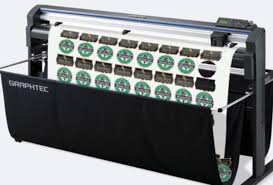
$169/MONTH NEW 64" Graphtec FC9000-160 For Automotive Professionals with 50 ft accurate tracking of Window Tint, PPF Film & Vinyl. Roll-fed Cutting Plotter

Sale

$169/MONTH NEW 64" Graphtec FC9000-160 For Automotive Professionals with 50 ft accurate tracking of Window Tint, PPF Film & Vinyl. Roll-fed Cutting Plotter
- Sale price
- $169
- Regular price
- $225
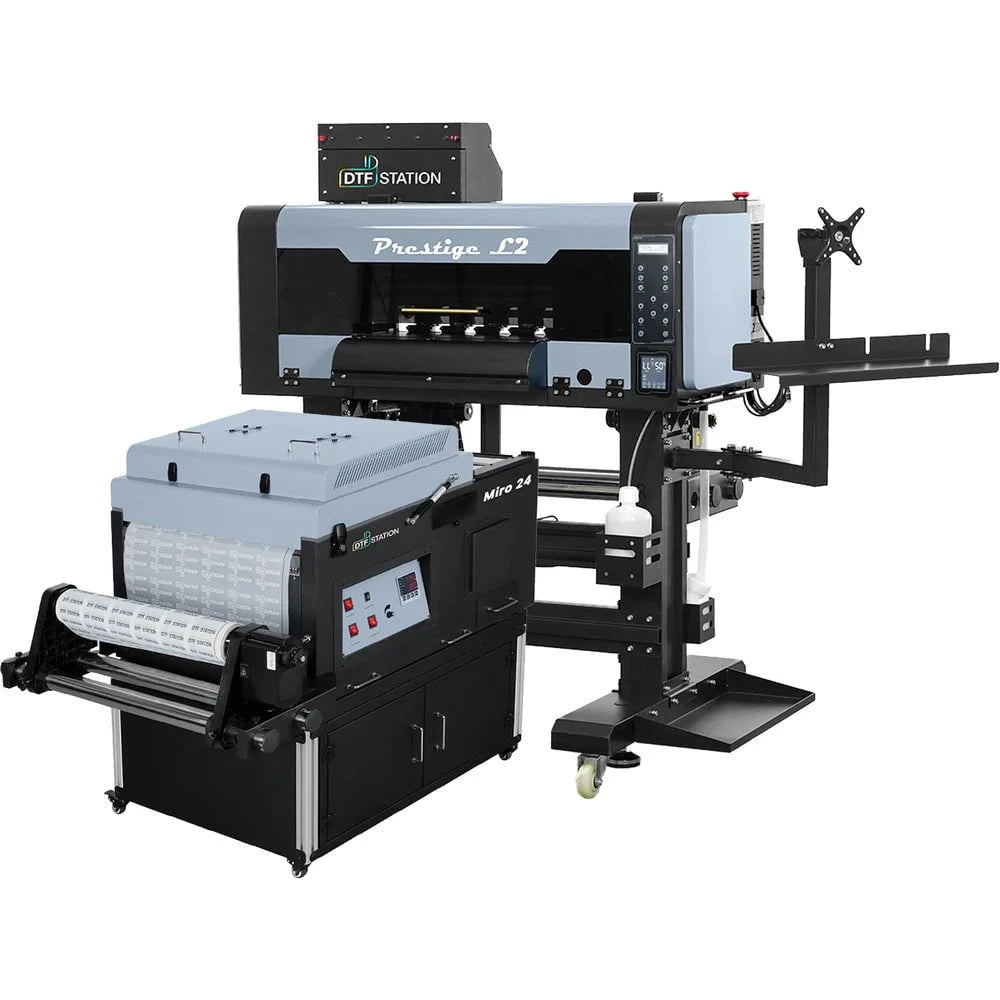
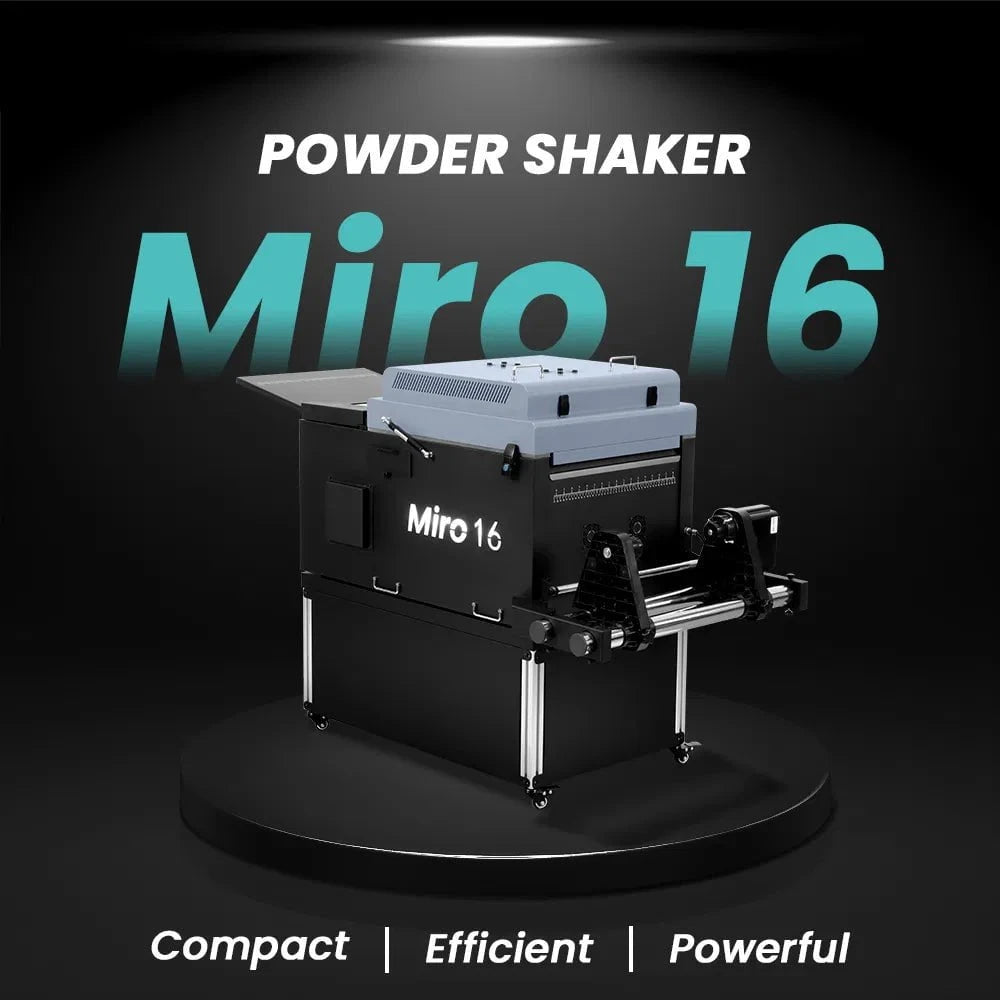
$379/month Prestige L2 18.5" DTF Printer Dual i3200 with Miro 16 Automatic Powder Applicator/Shaker oven and Built-In Oven
Sale
$379/month Prestige L2 18.5" DTF Printer Dual i3200 with Miro 16 Automatic Powder Applicator/Shaker oven and Built-In Oven
- Sale price
- $379
- Regular price
- $465
$195/Month 27" IN-STOCK Yinstar High Precision 27" Commercial Production DTF Printer with 2x i3200-A1 Epson Printheads DTF Powder Shaker.


Sale


$195/Month 27" IN-STOCK Yinstar High Precision 27" Commercial Production DTF Printer with 2x i3200-A1 Epson Printheads DTF Powder Shaker.
- Sale price
- $195
- Regular price
- $249
$247/Month 24" IN-STOCK Yinstar WI-FI DTF Printer with 2x Epson I3200 Print Heads Including DTF Powder Shaker Machine with Air Filter and Auto Powder Recycling System


Sale


$247/Month 24" IN-STOCK Yinstar WI-FI DTF Printer with 2x Epson I3200 Print Heads Including DTF Powder Shaker Machine with Air Filter and Auto Powder Recycling System
- Sale price
- $247
- Regular price
- $350
FAQs on the brother TN450 (TN-450) Laser Printer Toner Cartridges available for sale on the Absolute Toner website.
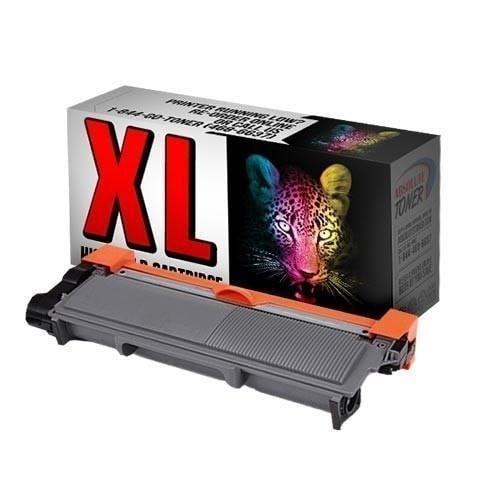
FAQs on the brother TN450 (TN-450) Printer Laser Toner Cartridges. Lowest online prices at the Absolutetoner.com
How to refill the brother TN450 toner cartridge?
Steps to Refilling the TN-450 Compatible Laser Toner Cartridge:
- Remove the plastic cap that seals from the TN450 cartridge.
- Dump any remaining toner out of the cartridge into the trash.
- Prepare the toner bottle and funnel.
- Dispense toner into the hole using the funnel.
- Firmly replace the cap and shake the cartridge to loosen the powder and make sure there is no leakage.
- Remove the two screws holding the black plastic covering on the other side of the cartridge.
- Remove the flag gear and turn it 180 degrees.
- Remove the center gear to access the gear below it.
- Rotate the gear below clockwise several times and align the flat side of the prong up and down, facing away from the flag gear.
- Replace the center gear and then the flag gear.
- Replace the black plastic covering and secure it with the screws (you may need the Flathead screwdriver to help position the flag gear when replacing the cover).
- Wipe down the cartridge and insert back into the drum.
- Your TN450 Cartridge is now ready to be put back into your printer.
Find more information on DIY refilling cartridges on Absolutetoner.com
How to reset a brother tn420 toner cartridge?
The following steps will need to be performed to manually reset the TN420 toner life.
Brother DCP/MFC Series
- Open the front cover to the toner/drum section of the printer.
- Press the Clear/Back button and the following message should appear in the LCD display “Replace Drum? 1. Yes 2. No”
-
RESET THE COUNTER IN THE FOLLOWING PROCEDURE BY PRINTER MODEL AND TONER TYPE.
MFC models with numeric keypads
TN450 high yield toner: Press the *, 1 and 2 button in this order
Unknown Toner Type: Press the *, 0 and 0 button in this order
DCP models without numeric keypads
TN450 high yield toner: Press the “Start” button, and press “arrow up” or “arrow down” button to display “12” on the LCD display. Then press the “OK” button.
Unknown Toner Type: Press the “Start” button, and press “arrow up” or “arrow down” button to display “00” on the LCD display. Then press the “OK” button.
The message “Accepted” should be appear on the LCD display. - After 2 seconds, “Cover Open” will appear on the LCD display.
- Close the front cover and the operation is now completed.
Brother Toner Cartridges HL Series
-
Turn off power to the printer.
2. Open the front cover to the toner/drum section of the printer.
3. Press and hold the “Go” button while turning on power to the printer.
4. Release the “Go” button after “Toner, Drum, and Error” LEDs turn on with the “Ready” LED turn off. All LEDs will now be OFF.
5. Press the “Go” button 2 times – The “Toner, Drum, and Error” LEDs will turn ON.
6. Press the “Go” button 6 times for a TN450
-
Close the front cover after Error LED starts to flash.
8. The reset procedure has been completed.
Check out more toner cartridge models on adsolutetoner.com
Tags - Cartridge Refilling, TN450, Printer Cartridges, Faq on TN450, Brother TN450,
- Choosing a selection results in a full page refresh.